Legacy CSS Framework
Nord Design System's original CSS Framework with shorthand utility classes.
Installation
Before moving further, please make sure you have Node.js installed on your machine. You can install the latest version through their website.
If you're planning on using Nord CSS Framework in a project that doesn't yet use Node Package Manager, you'll have to first create a package.json file. To do this, run npm init and follow the steps provided. Once finished, you can install the CSS Framework by following these instructions.
Install using NPM
Run in your project or website root directory (where package.json lives):
npm install @nordhealth/css
Install using Yarn
Run in your project or website root directory (where package.json lives):
yarn add @nordhealth/css
CDN usage
The CSS Framework can be directly used via Nord CDN, which allows your team to get up and running with minimal additions. The latest version of this framework can be added into your application by adding the below stylesheet <link> tag into the <head> section of your app:
<link rel="stylesheet" href="https://nordcdn.net/ds/css/3.3.0/nord.min.css" />
Browser support
Nord's CSS Framework is tested in the latest two versions of the following browsers. Our team addresses critical bug fixes in earlier versions based on their severity and impact. If you need to support IE11 or pre-Chromium Edge, this library isn't for you.





Usage
Once you've installed the CSS Framework package into your application, you can copy and paste the below stylesheet <link> tag into the <head> section of your app after all other stylesheets. This will load the Nord CSS Framework for you:
<link rel="stylesheet" href="[path-to-dir]/nord.min.css" />
The above example can be used alongside a copy tasks similar to the one described in our Webfonts guidelines. While technically possible, we don't recommend to load this file directly from node_modules.
Import in Sass
To import the CSS Framework into your Sass (scss), include this in the beginning of your main partial:
// Import CSS framework
@import "../../node_modules/@nordhealth/css/lib/nord";
You may need to edit the path shown above depending on your setup. If you're using Webpack you can use the following:
// Import CSS framework
@import "~@nordhealth/css/lib/nord";
Utilities
This and the below sections explain each provided utility class in detail. We've tried to strike a balance between readable but brief. We want your code to be readable but not so verbose that spelling errors get in the way.
Utilities begin with full word naming and begin to scope into more specific. For example borders:
.n-border: Application of a 1 pixel solid border from our Design Tokens.n-border-strong: The same border style but the strong color from our Design Tokens.n-border-strong-i: The same border style again but applying it to theinlinesides of the element (left and right sides converted to logical properties).n-border-strong-ie: The same again but applying it to theinline-endside of the element (the right side)
The pattern of shorthand lettering for modifiers has been used throughout to signify a specific side(s) of an element or for a specific size from our Design Tokens, using our t-shirt sizing convention (-xxl, -xl, etc).
Reset utility
The reset utility shown below is designed to be used on the highest level containing element in your markup and will reset the majority of styles to a sensible default.
The quick brown fox jumps over the lazy dog
The quick brown fox jumps over the lazy dog
The quick brown fox jumps over the lazy dog
The quick brown fox jumps over the lazy dog
The quick brown fox jumps over the lazy dog
The quick brown fox jumps over the lazy dog
Lorem ipsum dolor sit amet consectetur adipisicing elit. Deserunt amet ipsam enim sed sequi
voluptatibus, culpa explicabo voluptate maxime a, cumque ea reprehenderit ad consequuntur veniam? Fuga
impedit iste tenetur.
Lorem ipsum dolor sit amet consectetur adipisicing elit. Architecto quasi, incidunt eum ad, rerum dolorum sequi numquam illum deleniti nobis doloremque asperiores natus perferendis, recusandae at dolorem et aperiam totam.
Lorem ipsum dolor sit amet consectetur adipisicing elit. Architecto quasi, incidunt eum ad, rerum dolorum sequi numquam illum deleniti nobis doloremque asperiores natus perferendis, recusandae at dolorem et aperiam totam.
The quick brown fox jumps over the lazy dog
Lorem ipsum dolor sit amet consectetur adipisicing elit. Deserunt amet ipsam enim sed sequi voluptatibus, culpa explicabo voluptate maxime a, cumque ea reprehenderit ad consequuntur veniam? Fuga impedit iste tenetur.
Lorem ipsum dolor sit amet consectetur adipisicing elit. Architecto quasi, incidunt eum ad, rerum dolorum sequi numquam illum deleniti nobis doloremque asperiores natus perferendis, recusandae at dolorem et aperiam totam.
<link rel="stylesheet" href="https://nordcdn.net/ds/tokens/2.0.4/tokens.custom-properties.css" integrity="sha384-XtHi70a2WlH468I3Z4gPGu2ihcHfE7IzpM+bF0cn9nEXAG67YmXsSpBSEYULYC7E" crossorigin="anonymous" />The quick brown fox jumps over the lazy dog
Lorem ipsum dolor sit amet consectetur adipisicing elit. Deserunt amet ipsam enim sed sequi voluptatibus, culpa explicabo voluptate maxime a, cumque ea reprehenderit ad consequuntur veniam? Fuga impedit iste tenetur.
The quick brown fox jumps over the lazy dog
Lorem ipsum dolor sit amet consectetur adipisicing elit. Architecto quasi, incidunt eum ad, rerum dolorum sequi numquam illum deleniti nobis doloremque asperiores natus perferendis, recusandae at dolorem et aperiam totam.
The quick brown fox jumps over the lazy dog
Lorem ipsum dolor sit amet consectetur adipisicing elit. Deserunt amet ipsam enim sed sequi voluptatibus, culpa explicabo voluptate maxime a, cumque ea reprehenderit ad consequuntur veniam? Fuga impedit iste tenetur.
Lorem ipsum dolor sit amet consectetur adipisicing elit. Architecto quasi, incidunt eum ad, rerum dolorum sequi numquam illum deleniti nobis doloremque asperiores natus perferendis, recusandae at dolorem et aperiam totam.
The quick brown fox jumps over the lazy dog
Lorem ipsum dolor sit amet consectetur adipisicing elit. Architecto quasi, incidunt eum ad, rerum dolorum sequi numquam illum deleniti nobis doloremque asperiores natus perferendis, recusandae at dolorem et aperiam totam.
Lorem ipsum dolor sit amet consectetur adipisicing elit. Architecto quasi, incidunt eum ad, rerum dolorum sequi numquam illum deleniti nobis doloremque asperiores natus perferendis, recusandae at dolorem et aperiam totam.
The quick brown fox jumps over the lazy dog
- Lorem ipsum dolor sit amet consectetur adipisicing elit. Iste, aperiam doloribus. Dolore, eaque. Distinctio consequatur alias quae commodi praesentium recusandae libero, voluptate veniam. Commodi, velit ad ex sequi ut fugit?
- Molestias autem suscipit quos debitis. Fugiat asperiores vero unde quo, assumenda culpa iusto aspernatur fuga deleniti enim inventore! Ipsam, est. Impedit, illum! Animi eveniet perspiciatis nobis quia autem nam veniam.
- Aperiam corporis, aspernatur commodi a, quod illo suscipit voluptas similique, possimus odit error natus ex! Consequatur perferendis et similique, quo labore delectus autem minus enim aspernatur nesciunt saepe, nihil laboriosam.
- Sed, sunt. Ut, nihil? Odio quidem suscipit harum ea. Pariatur alias error incidunt provident tenetur neque accusantium quis, explicabo et quisquam, dignissimos soluta, consectetur sapiente recusandae expedita maiores deserunt.
- Soluta mollitia neque nemo libero ut totam minus enim maxime qui inventore et veniam, alias minima officia pariatur magni ipsa deserunt architecto asperiores ex dignissimos, culpa unde. Sint, cupiditate dolor?
- Lorem ipsum dolor, sit amet consectetur adipisicing elit. Et alias adipisci ut, ipsum quis quisquam deleniti quia, laudantium commodi placeat nostrum voluptatibus. Iusto labore voluptatibus dignissimos, sed eum maiores quaerat.
- Quasi temporibus distinctio maiores, dignissimos ullam quisquam? Dolorem similique consequatur laudantium rem perferendis. In sed ipsam nobis earum temporibus, veritatis totam libero atque sint quam, quo quisquam laborum est?
- Consequatur nemo dolorem nobis praesentium. Nisi laudantium pariatur sunt. Quo vitae quis fugit repellendus! Sunt ratione velit laborum natus libero. Incidunt dolor suscipit debitis commodi possimus. Soluta repellat unde nihil!
- Dolore labore, consectetur eaque suscipit molestiae incidunt quos dolorum? Aspernatur odio laudantium temporibus at, dolore illum ullam animi in distinctio sint maxime libero itaque, consequuntur eveniet. Doloremque, ipsum nesciunt?
- Tenetur ratione dolores accusamus illum totam, quidem sequi odit pariatur quae id numquam assumenda rem. Odit, numquam distinctio, eaque nihil adipisci aliquam similique, facilis mollitia saepe laudantium ea. Harum, temporibus.
- Lorem ipsum dolor sit amet consectetur adipisicing elit.
- Debitis quos exercitationem dolorem vitae doloremque delectus tempore tenetur quaerat maxime totam nihil praesentium, quae saepe fuga hic, aliquid, optio repellendus reprehenderit.
- Lorem ipsum dolor sit amet consectetur adipisicing elit.
- Pariatur adipisci quas ducimus unde optio incidunt, dolor dolorum ex! Quos at error dolor veniam facere eaque possimus ullam perferendis, neque velit?
- Lorem ipsum dolor sit, amet consectetur adipisicing elit.
- Velit aspernatur culpa dolore non. Enim cupiditate nihil dignissimos deserunt itaque a quis quibusdam, similique sequi voluptatibus, inventore optio asperiores voluptatem sed?
The quick brown fox jumps over the lazy dog
Lorem ipsum dolor sit amet consectetur adipisicing elit. Suscipit eveniet hic officiis natus itaque dicta praesentium laborum, optio reprehenderit quas est nihil, pariatur, porro nostrum facere ea molestias debitis quia!
Lorem ipsum dolor sit amet consectetur adipisicing elit. Sunt quis debitis dolor quasi, explicabo fuga alias illum provident a architecto itaque, dicta nulla ratione, veniam quidem culpa at consequuntur commodi.Lorem ipsum dolor sit amet consectetur adipisicing elit. Ex et illum provident nesciunt a illo sit, dicta labore aspernatur neque quibusdam ducimus in earum fugiat corporis doloribus magni praesentium cumque?
Lorem ipsum dolor sit amet consectetur adipisicing elit. Voluptatibus natus tenetur quidem ab libero accusantium dolore veniam eveniet recusandae voluptate est fugiat, ex explicabo possimus tempore eos praesentium quaerat quod?
Typographic utilities
There are two main typographic helpers within the CSS Framework; .n-typescale and .n-typeset. With these helpers, you can apply the values provided in our Design Tokens for font size, weight and spacing, without the need to create CSS of your own.
The quick brown fox
The quick brown fox
The quick brown fox
The quick brown fox
The quick brown fox
The quick brown fox
Additionally, applying .n-typeset to a containing element, will style all of its children text elements which can be useful for laying out typographic foundations.
The quick brown fox jumps over the lazy dog
The quick brown fox jumps over the lazy dog
The quick brown fox jumps over the lazy dog
The quick brown fox jumps over the lazy dog
The quick brown fox jumps over the lazy dog
The quick brown fox jumps over the lazy dog
Lorem ipsum dolor sit amet consectetur adipisicing elit. Deserunt amet ipsam enim sed sequi
voluptatibus, culpa explicabo voluptate maxime a, cumque ea reprehenderit ad consequuntur veniam? Fuga
impedit iste tenetur.
Lorem ipsum dolor sit amet consectetur adipisicing elit. Architecto quasi, incidunt eum ad, rerum dolorum sequi numquam illum deleniti nobis doloremque asperiores natus perferendis, recusandae at dolorem et aperiam totam.
Lorem ipsum dolor sit amet consectetur adipisicing elit. Architecto quasi, incidunt eum ad, rerum dolorum sequi numquam illum deleniti nobis doloremque asperiores natus perferendis, recusandae at dolorem et aperiam totam.
The quick brown fox jumps over the lazy dog
Lorem ipsum dolor sit amet consectetur adipisicing elit. Deserunt amet ipsam enim sed sequi voluptatibus, culpa explicabo voluptate maxime a, cumque ea reprehenderit ad consequuntur veniam? Fuga impedit iste tenetur.
Lorem ipsum dolor sit amet consectetur adipisicing elit. Architecto quasi, incidunt eum ad, rerum dolorum sequi numquam illum deleniti nobis doloremque asperiores natus perferendis, recusandae at dolorem et aperiam totam.
<link rel="stylesheet" href="https://nordcdn.net/ds/tokens/2.0.4/tokens.custom-properties.css" integrity="sha384-XtHi70a2WlH468I3Z4gPGu2ihcHfE7IzpM+bF0cn9nEXAG67YmXsSpBSEYULYC7E" crossorigin="anonymous" />The quick brown fox jumps over the lazy dog
Lorem ipsum dolor sit amet consectetur adipisicing elit. Deserunt amet ipsam enim sed sequi voluptatibus, culpa explicabo voluptate maxime a, cumque ea reprehenderit ad consequuntur veniam? Fuga impedit iste tenetur.
The quick brown fox jumps over the lazy dog
Lorem ipsum dolor sit amet consectetur adipisicing elit. Architecto quasi, incidunt eum ad, rerum dolorum sequi numquam illum deleniti nobis doloremque asperiores natus perferendis, recusandae at dolorem et aperiam totam.
The quick brown fox jumps over the lazy dog
Lorem ipsum dolor sit amet consectetur adipisicing elit. Deserunt amet ipsam enim sed sequi voluptatibus, culpa explicabo voluptate maxime a, cumque ea reprehenderit ad consequuntur veniam? Fuga impedit iste tenetur.
Lorem ipsum dolor sit amet consectetur adipisicing elit. Architecto quasi, incidunt eum ad, rerum dolorum sequi numquam illum deleniti nobis doloremque asperiores natus perferendis, recusandae at dolorem et aperiam totam.
The quick brown fox jumps over the lazy dog
Lorem ipsum dolor sit amet consectetur adipisicing elit. Architecto quasi, incidunt eum ad, rerum dolorum sequi numquam illum deleniti nobis doloremque asperiores natus perferendis, recusandae at dolorem et aperiam totam.
Lorem ipsum dolor sit amet consectetur adipisicing elit. Architecto quasi, incidunt eum ad, rerum dolorum sequi numquam illum deleniti nobis doloremque asperiores natus perferendis, recusandae at dolorem et aperiam totam.
The quick brown fox jumps over the lazy dog
- Lorem ipsum dolor sit amet consectetur adipisicing elit. Iste, aperiam doloribus. Dolore, eaque. Distinctio consequatur alias quae commodi praesentium recusandae libero, voluptate veniam. Commodi, velit ad ex sequi ut fugit?
- Molestias autem suscipit quos debitis. Fugiat asperiores vero unde quo, assumenda culpa iusto aspernatur fuga deleniti enim inventore! Ipsam, est. Impedit, illum! Animi eveniet perspiciatis nobis quia autem nam veniam.
- Aperiam corporis, aspernatur commodi a, quod illo suscipit voluptas similique, possimus odit error natus ex! Consequatur perferendis et similique, quo labore delectus autem minus enim aspernatur nesciunt saepe, nihil laboriosam.
- Sed, sunt. Ut, nihil? Odio quidem suscipit harum ea. Pariatur alias error incidunt provident tenetur neque accusantium quis, explicabo et quisquam, dignissimos soluta, consectetur sapiente recusandae expedita maiores deserunt.
- Soluta mollitia neque nemo libero ut totam minus enim maxime qui inventore et veniam, alias minima officia pariatur magni ipsa deserunt architecto asperiores ex dignissimos, culpa unde. Sint, cupiditate dolor?
- Lorem ipsum dolor, sit amet consectetur adipisicing elit. Et alias adipisci ut, ipsum quis quisquam deleniti quia, laudantium commodi placeat nostrum voluptatibus. Iusto labore voluptatibus dignissimos, sed eum maiores quaerat.
- Quasi temporibus distinctio maiores, dignissimos ullam quisquam? Dolorem similique consequatur laudantium rem perferendis. In sed ipsam nobis earum temporibus, veritatis totam libero atque sint quam, quo quisquam laborum est?
- Consequatur nemo dolorem nobis praesentium. Nisi laudantium pariatur sunt. Quo vitae quis fugit repellendus! Sunt ratione velit laborum natus libero. Incidunt dolor suscipit debitis commodi possimus. Soluta repellat unde nihil!
- Dolore labore, consectetur eaque suscipit molestiae incidunt quos dolorum? Aspernatur odio laudantium temporibus at, dolore illum ullam animi in distinctio sint maxime libero itaque, consequuntur eveniet. Doloremque, ipsum nesciunt?
- Tenetur ratione dolores accusamus illum totam, quidem sequi odit pariatur quae id numquam assumenda rem. Odit, numquam distinctio, eaque nihil adipisci aliquam similique, facilis mollitia saepe laudantium ea. Harum, temporibus.
- Lorem ipsum dolor sit amet consectetur adipisicing elit.
- Debitis quos exercitationem dolorem vitae doloremque delectus tempore tenetur quaerat maxime totam nihil praesentium, quae saepe fuga hic, aliquid, optio repellendus reprehenderit.
- Lorem ipsum dolor sit amet consectetur adipisicing elit.
- Pariatur adipisci quas ducimus unde optio incidunt, dolor dolorum ex! Quos at error dolor veniam facere eaque possimus ullam perferendis, neque velit?
- Lorem ipsum dolor sit, amet consectetur adipisicing elit.
- Velit aspernatur culpa dolore non. Enim cupiditate nihil dignissimos deserunt itaque a quis quibusdam, similique sequi voluptatibus, inventore optio asperiores voluptatem sed?
The quick brown fox jumps over the lazy dog
Lorem ipsum dolor sit amet consectetur adipisicing elit. Suscipit eveniet hic officiis natus itaque dicta praesentium laborum, optio reprehenderit quas est nihil, pariatur, porro nostrum facere ea molestias debitis quia!
Lorem ipsum dolor sit amet consectetur adipisicing elit. Sunt quis debitis dolor quasi, explicabo fuga alias illum provident a architecto itaque, dicta nulla ratione, veniam quidem culpa at consequuntur commodi.Lorem ipsum dolor sit amet consectetur adipisicing elit. Ex et illum provident nesciunt a illo sit, dicta labore aspernatur neque quibusdam ducimus in earum fugiat corporis doloribus magni praesentium cumque?
Lorem ipsum dolor sit amet consectetur adipisicing elit. Voluptatibus natus tenetur quidem ab libero accusantium dolore veniam eveniet recusandae voluptate est fugiat, ex explicabo possimus tempore eos praesentium quaerat quod?
Description list utility
Description lists are ideal for presenting key / value pair data. While the .n-reset utility helper resets all typographic elements to a manageable default the .n-dl utility will style description lists into a much more presentable format.
- Status
- Success
- Date
- Value 2
- Amount
- 50,00 €
- Payment fee
- 1,75
- Method
- Card
- Identifier
PAY38DL19710O- Description
- Lorem ipsum dolor sit, amet consectetur adipisicing elit. Earum adipisci cupiditate deleniti sed perferendis placeat nesciunt soluta impedit, animi nisi atque sit at aliquid rem quaerat voluptas excepturi quo qui.
Font size utilities
Nord defines its sizing using t-shirt sizes. This makes it possible for anyone, technical or non-technical, to understand the differences and how they relate to each other. Font sizing follows this same convention to mirror our Font Size Design Tokens.
Font weight utilities
Interfaces are majority text, which is why we've spent a great amount of time fine-tuning our typographic choices. Use the below utilities to set font weights consistently.
Color utilities
Nord CSS Framework provides not only access to the colors within our Design Tokens, but also a method of applying these tokens with a reduced risk of error, to ensure you're using the colors as they are intended.
Accent color has been made available in all the most common scenarios; color, background-color and fill.
Text color utilities
Colors intended for text have been wrapped up in a utility helper for direct application:
Background color utilities
Colors intended for element backgrounds or surfaces have been scoped into the background-color property and can be applied using the following utility helpers:
Border utilities
Borders have been wrapped up into a series of utility helpers that make use of logical properties, so that your styles continue to work when your application changes languages.
These logical properties translate to different sides depending on the viewers language settings. We've abbreviated these properties into their initials to prevent overly verbose classnames. These abbreviations translate to the following properties in left-to-right languages:
-is: Short forinline-start, which is the left side-ie: Short forinline-end, which is the right side-bs: Short forblock-start, which is the top side-be: Short forblock-end, which is the bottom side-i: Short forinline, which is the left and right sides-b: Short forblock, which is the top and bottom side
Border radius utilities
Border radius tokens are available as utility helpers to apply rounded corners to elements. If you require more precise control over rounded corners, such as applying them to specific corners, we recommend making use of our border radius design tokens directly.
Box shadow utilities
Box shadow tokens are designed to help reflect the elevation of a component or element. Larger shadows show that the element is higher and smaller shadows (or no shadow) show that the element is lower. Box shadow utility helpers have been named to reflect their intended purpose, please refer to our box shadow design tokens for further information.
Icon utilities
The icon utilities include colors as well as sizes. Sizes have been scoped into inline-size and block-size properties, while colors have been scoped to the color property so that the currentColor attribute value can respectively inherit the color.
Stack utilities
The Stack component manages layout of immediate children along the vertical or horizontal axis with adjustable spacing between each child. The stack utility helpers are designed to provide the same features but with a single class applied to the containing element. The default child spacing is set to --n-space-m but can be adjusted using our gap utilities. By default, the stack utility helpers wrap (as opposed to the Stack component), but this can be disabled by adding the .n-stack-no-wrap utility helper.
As with the border utilities, the shorthand utility modifiers use logical properties. However the Stack utilities are only interested in vertical alignment. They follow this convention:
-s:start, which is the top alignment-e:end, which is the bottom alignment
For more fine-grained positioning, you can adjust the justify-content property by using one of these utility classes:
.n-justify-center:justify-content: center;.n-justify-start:justify-content: flex-start;.n-justify-end:justify-content: flex-end;.n-justify-between:justify-content: space-between;.n-justify-evenly:justify-content: space-evenly;.n-justify-around:justify-content: space-around;
Plus, you can adjust the align-items property by using one of these utility classes:
.n-items-center:align-items: center;.n-items-start:align-items: flex-start;.n-items-end:align-items: flex-end;.n-items-baseline:align-items: baseline;.n-items-stretch:align-items: stretch;
.n-stack-horizontal
.n-stack-horizontal-s
.n-stack-horizontal-e
.n-stack-horizontal .n-items-baseline
.n-stack-horizontal .n-items-stretch
Grid and container utilities
Grid and container helper classes are for creating layouts that follow our recommended grid layouts as shown in our Toolkit. The grid utilities can be used alongside the .n-container utilities to constrain containers to a desired width. The default child spacing in a grid is set to --n-space-m but can be adjusted using our gap utilities.
.n-grid: Provides a set column structure for items to fall into. Items can then be adjusted to fill more grid 'cells' with style propertiesgrid-column: span 2orgrid-row: span 2. In addition there are helpers to align grid items horizontally, vertically or both (.n-grid-center). See examples below for all available grid item options.n-container: Used to contain elements to a fixed width as the browser width grows. These help with readable line length as well as providing focus to pages with reduced content. See examples below for all available container width options.
When using any of the n-grid utility helpers it's also possible to fine tune the grid column count to your needs using the --n-grid-columns CSS custom property, however we highly recommend using the existing helpers provided.
Gap utilities
By default both the stack and grid utilities have their child spacing set to --n-space-m to mirror the Stack component's default behaviour. However this can be adjusted using n-gap-xxl, n-gap-xl, n-gap-l, n-gap-s or n-gap-xs which applies our spacing tokens as gaps. Using n-gap-none will remove the gap entirely.
Spacing utilities
Our spacing tokens are accessible via the CSS Framework as margin and padding. These are all applied using logical properties, so that your styles continue to work when your application changes languages. These also follow the t-shirt sizing convention.
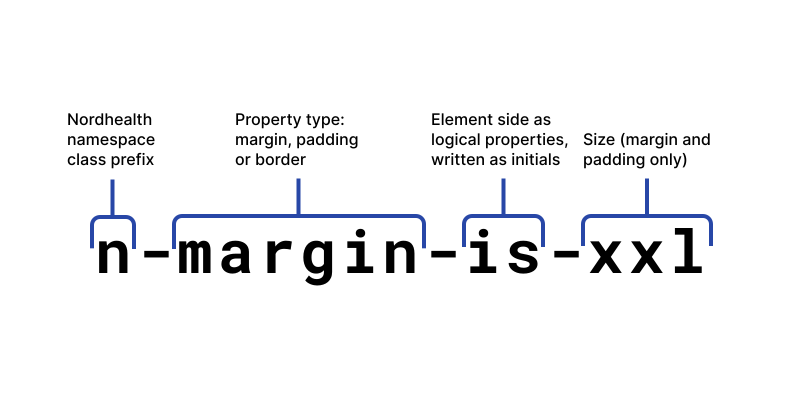
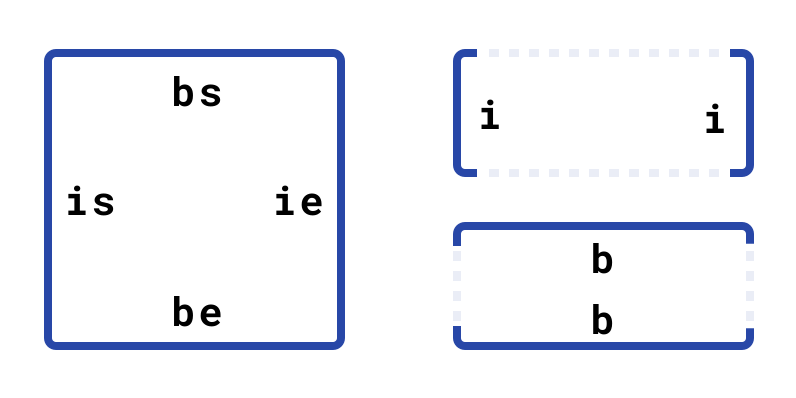
As with the border utilities, the shorthand utility modifiers use logical properties. They follow this convention:
-is: Short forinline-start, which is the left side-ie: Short forinline-end, which is the right side-bs: Short forblock-start, which is the top side-be: Short forblock-end, which is the bottom side-i: Short forinline, which is the left and right sides-b: Short forblock, which is the top and bottom side
Margin
In addition to the spacing tokens the margin helpers come with "auto" margins. These can be useful for pushing an element to the start or end of a stack or grid as well as centering en element horizontally as well as vertically.
Padding
Miscellaneous utilities
These final utility helpers are due to be expanded upon but at present provide options for truncating lines of text, adding dividers and creating form fields. Multiline truncation is achieved using webkit line clamp, please check browser compatibility before using.
The quick brown fox jumps over the lazy dog. The quick brown fox jumps over the lazy dog. The quick brown fox jumps over the lazy dog. The quick brown fox jumps over the lazy dog. The quick brown fox jumps over the lazy dog. The quick brown fox jumps over the lazy dog. The quick brown fox jumps over the lazy dog. The quick brown fox jumps over the lazy dog. The quick brown fox jumps over the lazy dog.
.n-align-start
.n-align-center
.n-align-end
CSS custom properties
While we do recommend using components and utility helpers where you can, it's possible to use our design tokens directly in your code to give you finer grain control over your presentation. Our design tokens can be accessed using CSS custom properties (also known as CSS variables). These are the exact same custom properties shown on our design tokens page.
An example use case could be that you wish to use our spacing tokens to add margin around an element:
.custom-cta {
  margin: var(--n-space-xxl);
}
Another use case could be that you want to apply a color token to a highlighted piece of text:
mark {
  background: var(--n-color-status-highlight);
}
Using our design tokens via CSS custom properties means that not only will these values be kept up to date but they will also change automatically when used in conjunction with our themes.
Getting support
Need help with our CSS Framework? Please head over to the Support page for more information and ways to contact us.